Beta setup
Set up Ago
You need: a Mac on macOS 14 (Sonoma) or later with your Messages on it, an iPhone on iOS 17 or later, and both on the same Wi-Fi.
Ago never uses the internet. Your messages stay on your Mac and your phone.
1. Install Ago on your Mac
- Download Ago for Mac (Ago.dmg).
- Open the downloaded file. In the window that appears, drag Ago onto Applications.
- Open Applications and double-click Ago. If macOS asks whether you're sure you want to open an app downloaded from the internet, click Open. Ago is signed and checked by Apple.
- Ago lives in your menu bar (top right of the screen). Its window opens on first launch.
Eject the “Ago” disk in Finder's sidebar when you're done. You can delete the .dmg file.
2. Give Ago Full Disk Access
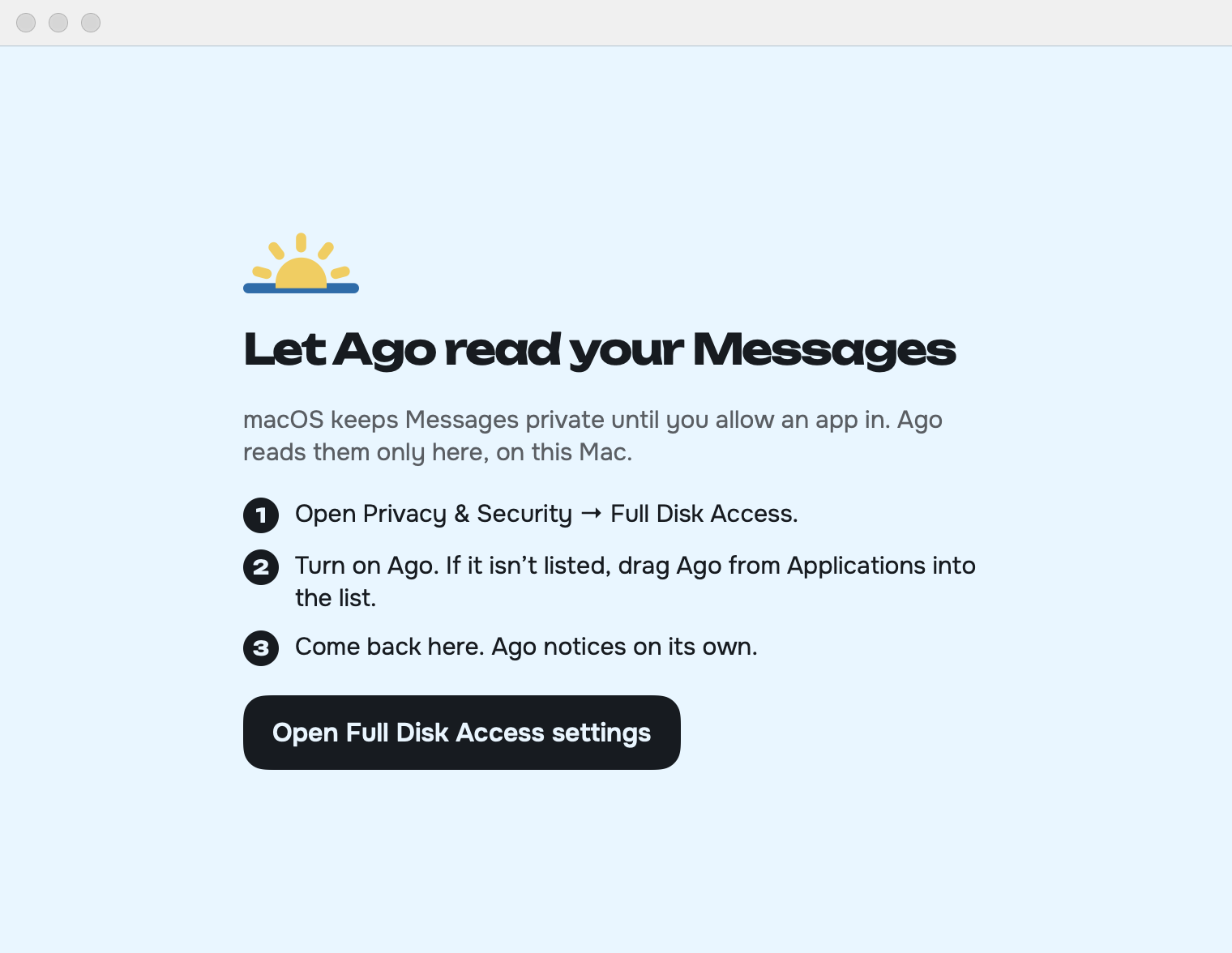
macOS keeps Messages in a protected folder. Full Disk Access lets Ago read it. Ago only reads it and never changes, sends or uploads anything.
- In Ago, click Open Full Disk Access settings. (Or open System Settings → Privacy & Security → Full Disk Access.)
- If Ago is in the list, switch it on. If it isn't, click +, choose Ago from Applications, then switch it on.
- If macOS asks you to quit and reopen Ago, click Quit & Reopen.
3. Build your index
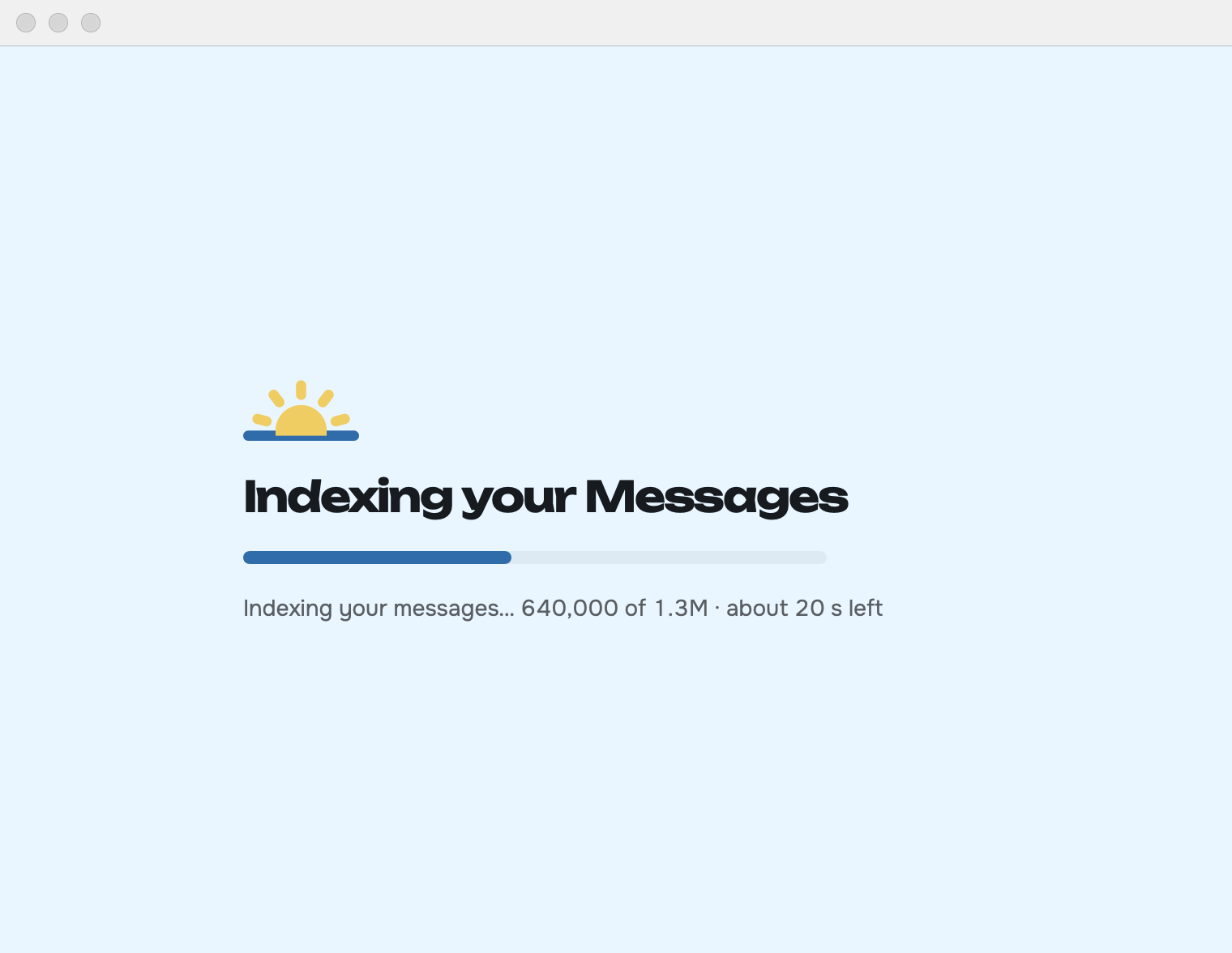
- In Ago, click Index my Messages.
- Wait for it to finish. Usually a minute or two, longer for a very big history. You can search on the Mac as soon as it's done.
Only recent messages? Turn on Messages in iCloud on the Mac (Messages → Settings → iMessage), let it download your history, then click Rebuild index.
4. Install Ago on your iPhone
- Install Apple's free TestFlight app from the App Store.
- On your iPhone, open the Ago beta invite and tap Accept, then Install.
5. Pair your iPhone with your Mac
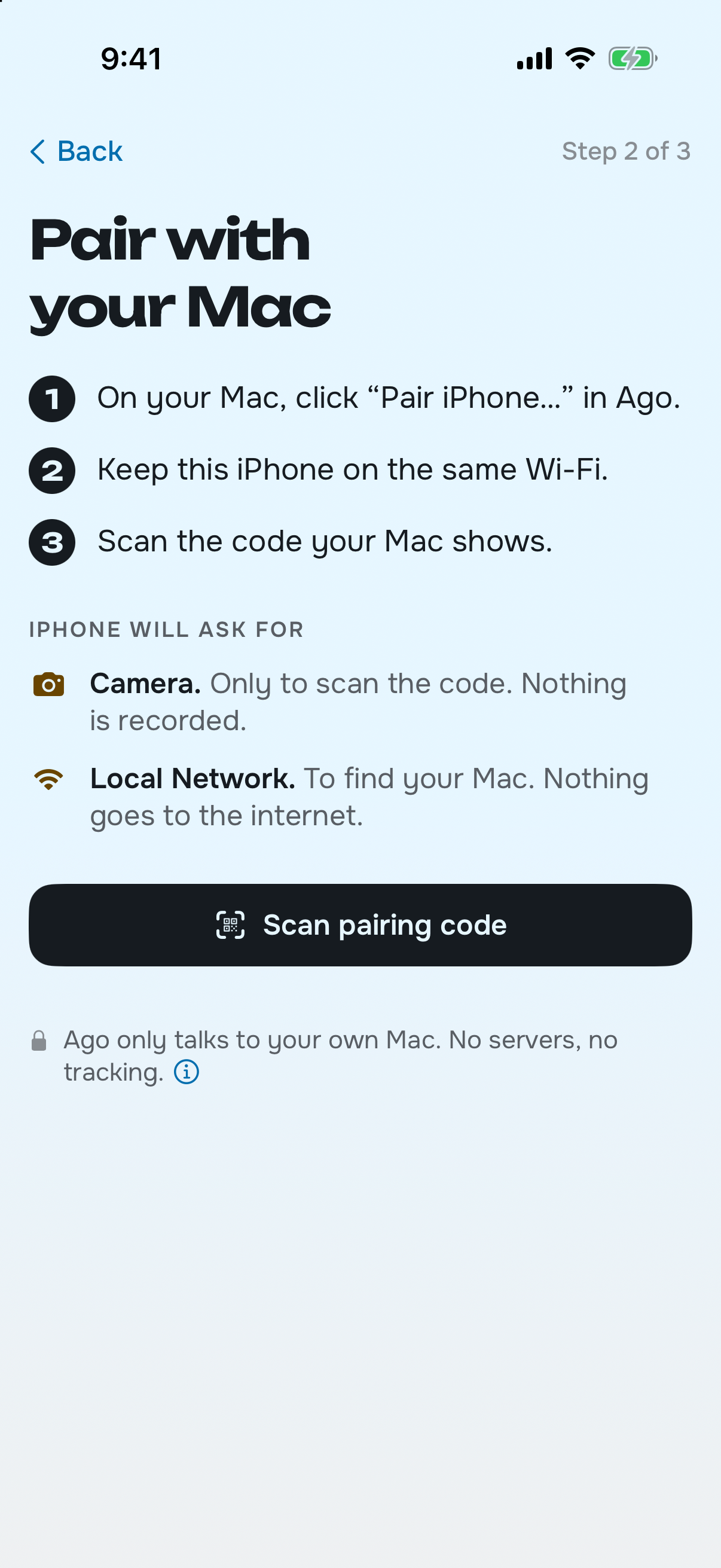
- Put both devices on the same Wi-Fi. Guest networks and some office networks block this. Turn off any VPN while you pair.
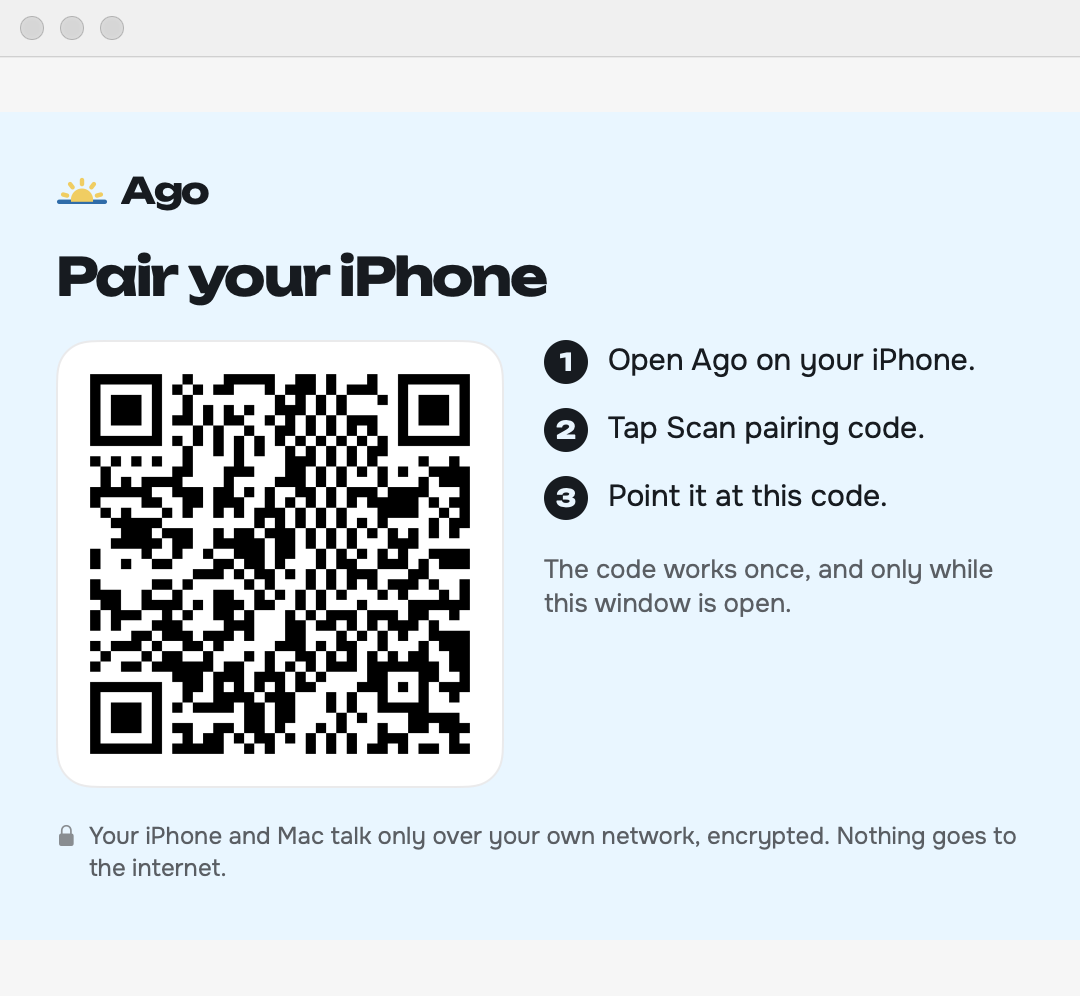
- On the Mac, open Ago and click Pair iPhone…. A QR code appears. If macOS asks to let Ago find devices on your local network, click Allow.
- On the iPhone, open Ago and tap Scan pairing code. Allow the camera (only used to scan the code) and local network access (only used to reach your Mac).
- Both screens show a short code. If they're the same, tap Yes, it matches on the iPhone and click Codes match, pair on the Mac.
Your phone copies the index and then searches anywhere, even offline. When it's back on the same Wi-Fi as your Mac, it picks up new messages.
Updating
- iPhone: TestFlight updates Ago for you, or tap Update in TestFlight.
- Mac: when we tell you there's a new version, quit Ago (menu bar icon → Quit), download Ago.dmg again and drag it onto Applications, choosing Replace. Your index and pairing are kept. If search stops finding new messages after an update, check that Ago is still switched on in Full Disk Access.
Something's not right
- “Ago can't be opened” on the Mac: make sure you opened the copy in Applications, not the one inside the disk image. Then email us.
- Ago says it can't read Messages: Full Disk Access is off. Repeat step 2, then quit and reopen Ago.
- iPhone can't find the Mac: keep the pairing window open on the Mac. Check Settings → Privacy & Security → Local Network on the iPhone, and System Settings → Privacy & Security → Local Network on the Mac. Ago must be on in both.
- More answers on the support page.
Send beta feedback from the TestFlight app (take a screenshot in Ago, then tap Share Beta Feedback), or by email. Please don't send screenshots of your real messages. Describe what happened instead.
Removing Ago
- iPhone: in Ago, tap Forget next to your Mac, then delete the app.
- Mac: quit Ago, delete the folder
~/Library/Application Support/Ago(Finder → Go → Go to Folder), move Ago to the Trash, and remove it from Full Disk Access.